
22 Setting up your Workspace
- Clone the AnVIL workspace: https://anvil.terra.bio/#workspaces/anvil-outreach/demos-mage-minihack
- For steps on launching Terra and cloning workspaces, read here.
- Then, follow these steps to launch RStudio within your AnVIL workspace. When creating your RStudio workspace you will need to paste the startup script in your workspace into the cloud environment. The next step walks you through how to locate the startup script and where to paste it.
22.1 Locate the Startup Script
We will use a start up script when creating an RStudio Cloud Environment on AnVIL. Copy the path below: it will help us install AnVILGCP, vcfR, and bcftools automatically. The start-up script can be found in the original workspace under the Data tab, under “Workspace Data”, or in the workspace files. For example, format of the start-up script would be:
gs://fc-9a141623-268f-47f8-8466-1747b5980b67/install-conda.shHere’s where you find the start-up script:
Navigate to your workspace.
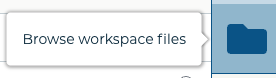
Click on blue folder icon on the right pane to browse workspace files.
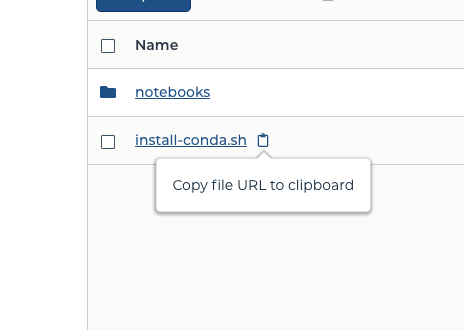
Select the clipboard icon as show below next to
install-conda.sh.
- Navigate to your RStudio workspace.
- Paste it into the cloud environment settings:
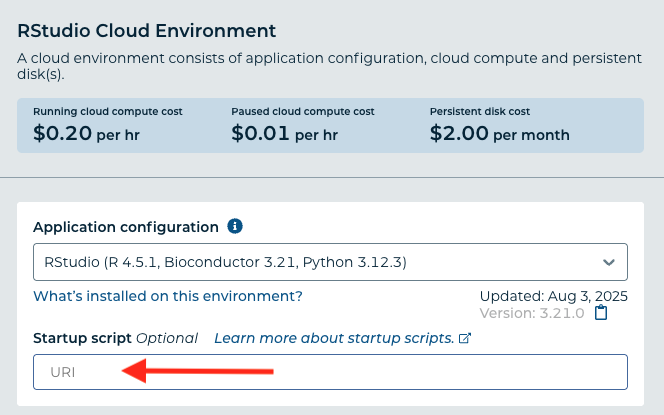
To read more on preconfiguring a Cloud Environment using startup scripts, click here.
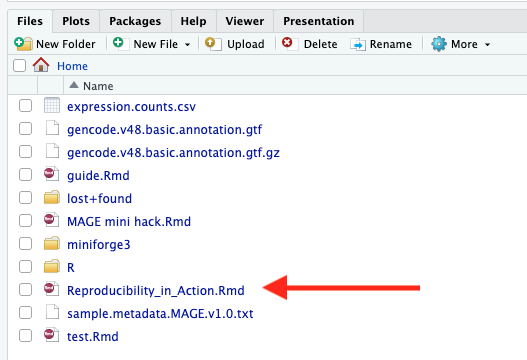
- Inside your RStudio workspace, the Files pane is located on the bottom right. Open
Reproducibility_in_Action.Rmdand follow through the notebook.
- Ensure that you replace add your Google Project ID here with your Google Project ID in line 288 of your R Markdown file.
- To locate this information: In the dashboard page of your workspace, you will see Google Project ID under the Cloud Information section. The format of it will follow ‘terra-xxxxxxxx’.