This page adapted from Using a Workshop Session
Log in
We will use a pre-configured RStudio instance hosted on OrchestraPlatfom for the hands-on part. Log in on any browser:
- orchestraplatform.org click on “Launch a workshop”
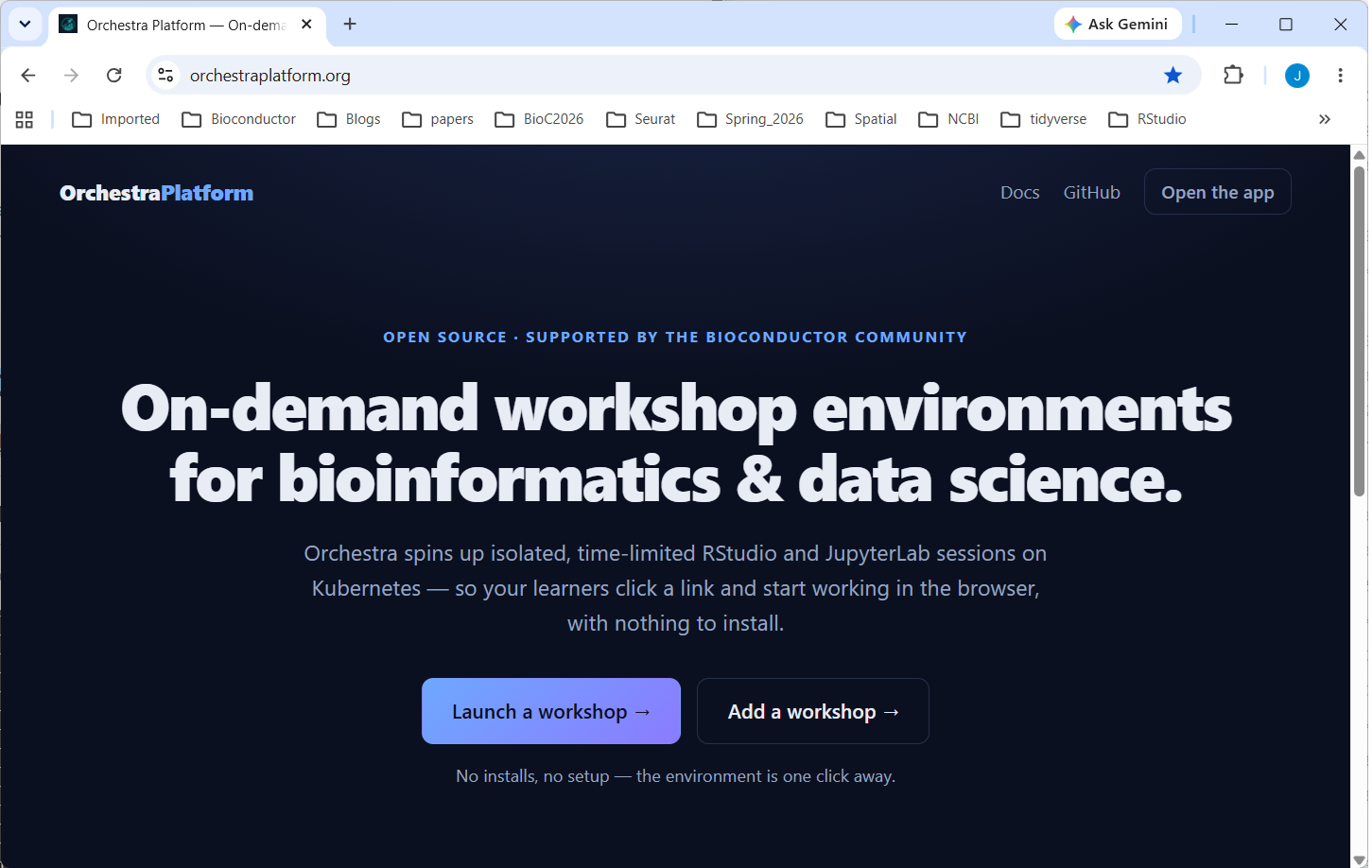
Sign in with a Google account. Any Google account works — a personal Gmail address or an institutional account backed by Google.
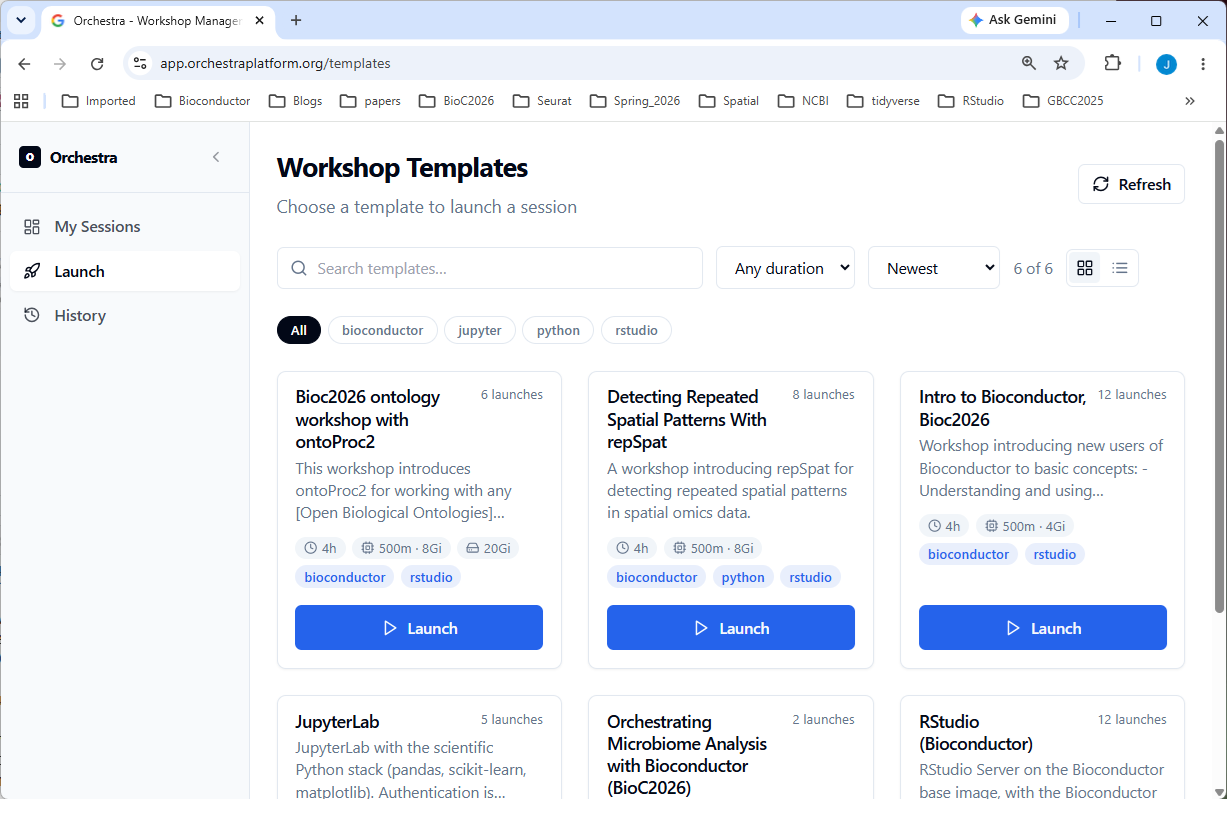
Click on “Launch” on left side (or + Browse Templates or + New Session) and pick the desired workshop (here: Intro to Bioconductor, Bioc2026)
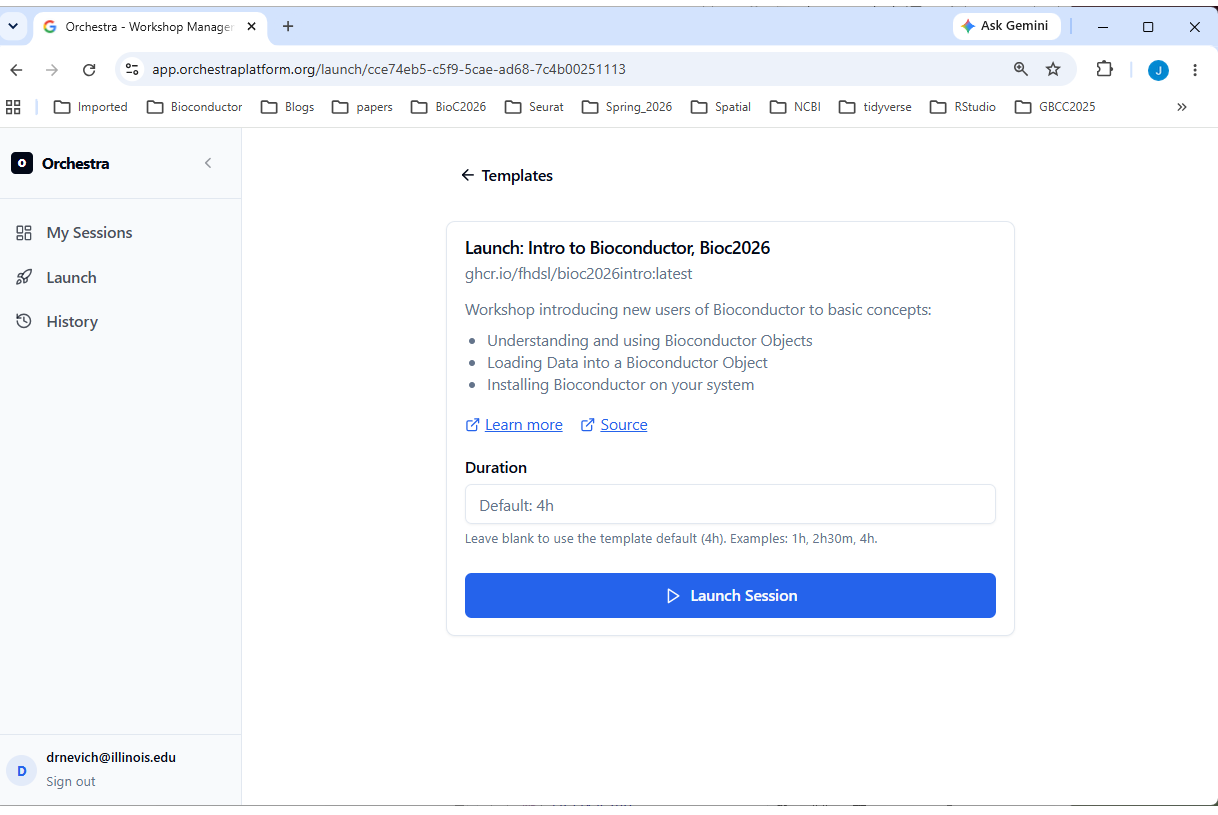
- Select desired duration and click “Launch Session”
- You will see a Session Card with the status Pending then Starting as the instance gets spun up. It will stay on Starting for 30 sec - several minutes depending on usage.
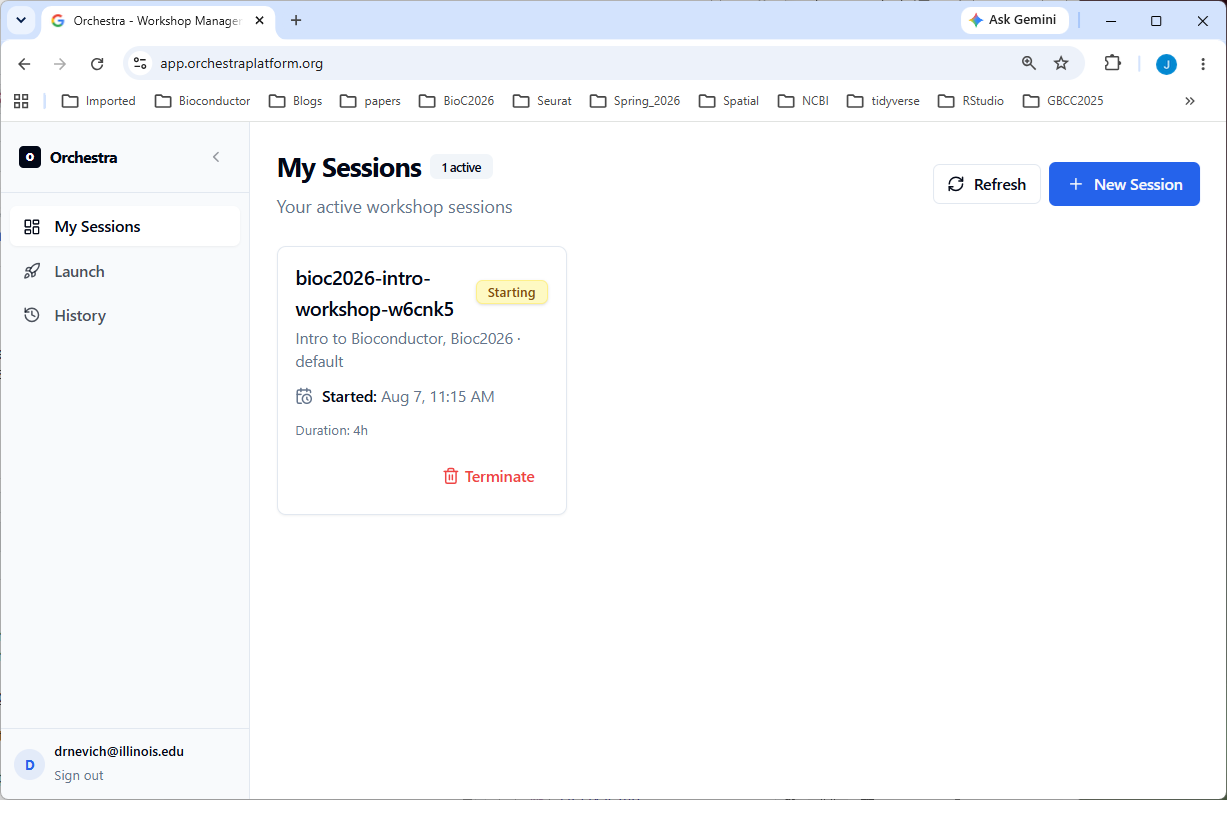
- Once you see Ready choose Open to connect
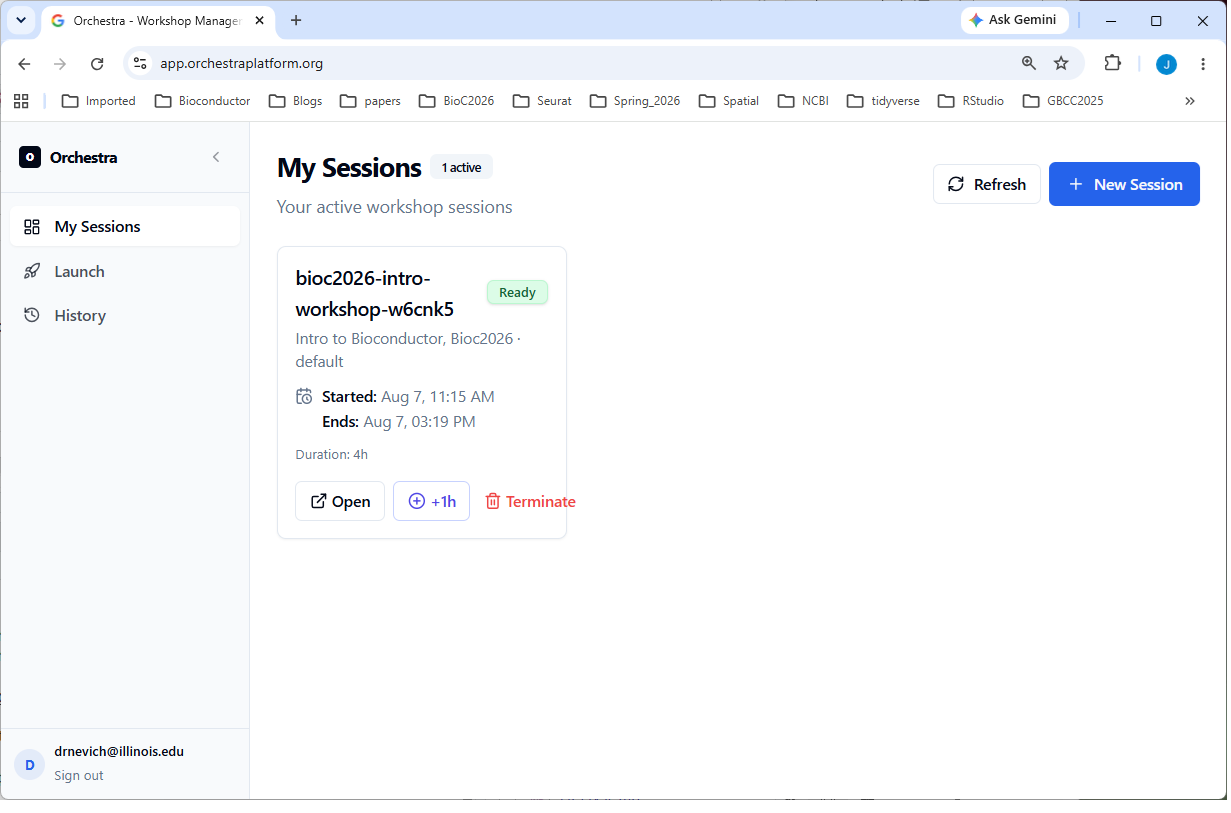
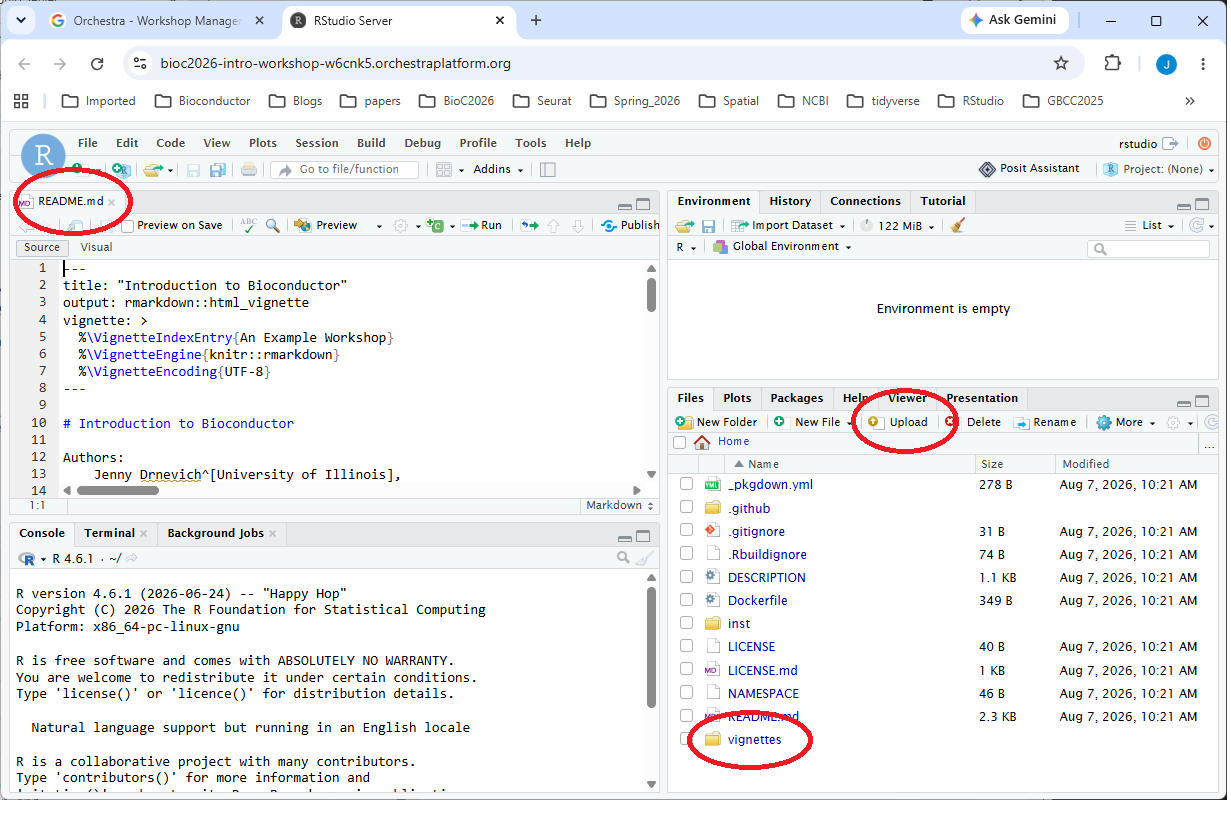
- A new browser tab will open with RStudio and the materials for the
workshop.
- README.md is a good place to start
- Articles/lessons are in the vignettes folder
- Files can be uploaded by using the Upload button in the Files tab
The session is temporary!
Every session has a time limit, shown as a countdown on its session card in the first browser tab. This keeps the cluster available for everyone — but it means:
Save your work before the timer runs out.
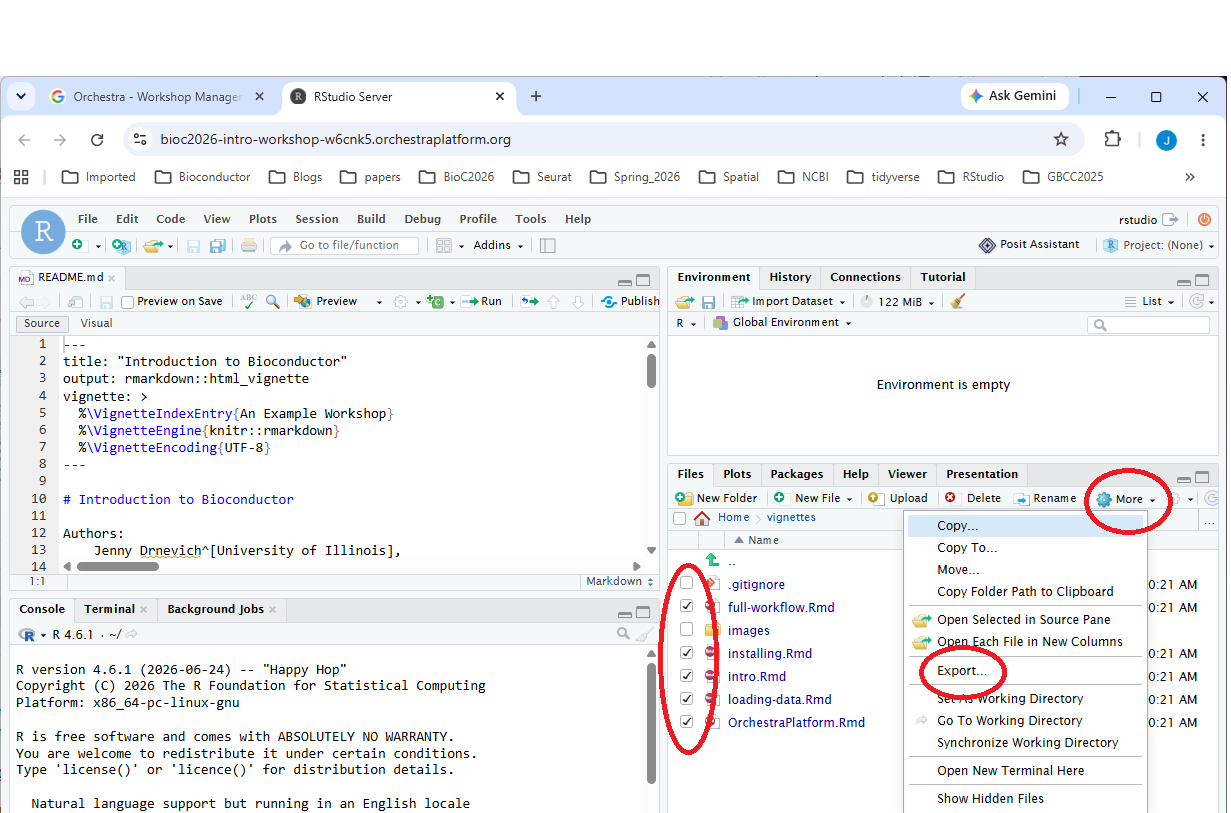
When a session expires (or you end it), everything in it is removed — including files you created. Download anything you want to keep — notebooks, scripts, results — before it expires. There is no way to recover a session after it’s gone.
To download files: in RStudio, tick the files in the Files pane, then More → Export…;
Get more time
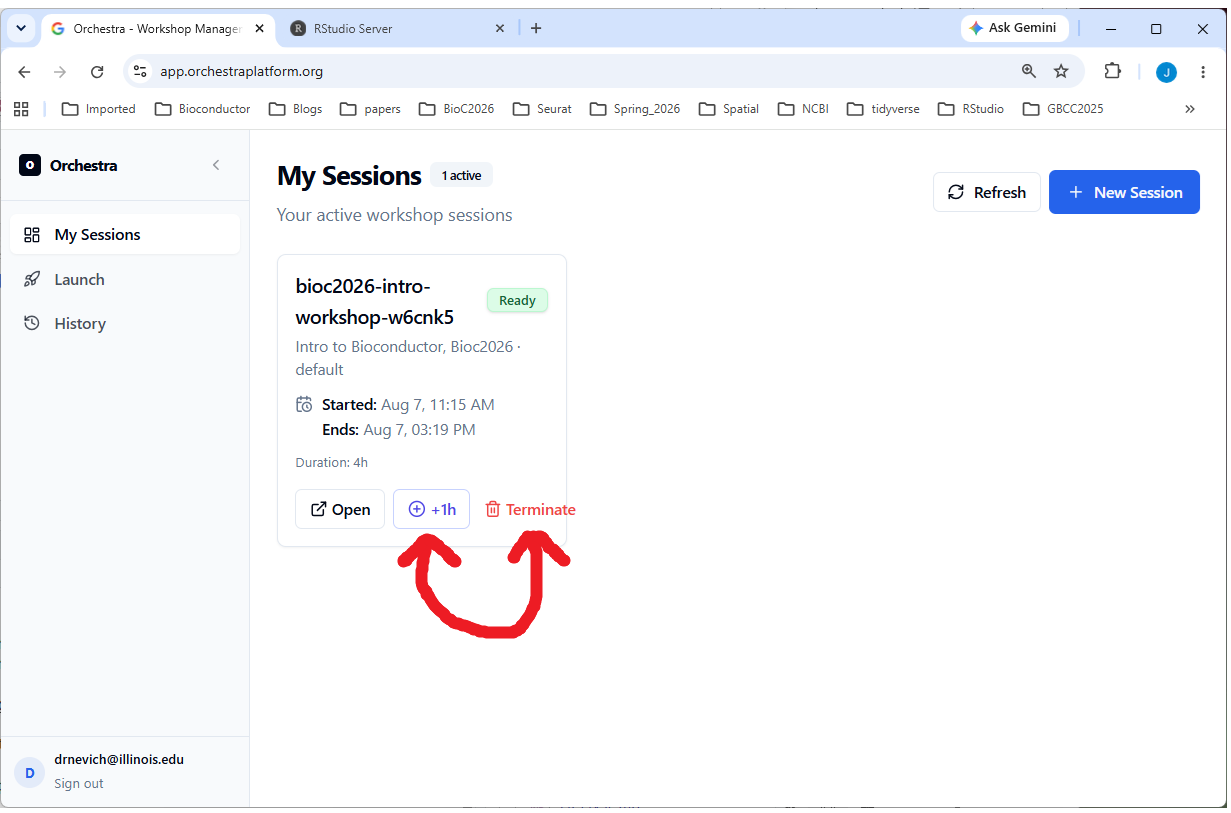
If you’re running low, use +1h on the session card in the first browser tab to extend it. You’ll see a warning as the deadline approaches, and again when it’s close.
Finished early?
When you’re done, choose Terminate on the session card in the dashboard to end the session and free up resources. If you’d rather not, that’s fine too — just close the tab and the session will clean itself up when the timer runs out. Either way, save your work first.
Something went wrong?
Stuck on Starting for a while — some images are large and take a few minutes on first launch. If it never reaches Ready, tell your instructor.
Session disappeared — it likely expired. Launch a fresh one; remember to save your work this time.
Can’t open it — your workshop may still be starting, or the session ended. Check the status on the dashboard.